

Introduction
Want to start your own blog but don’t know how to build a professional website?
You don’t need to be a programmer or learn complicated coding to create a modern WordPress blog website.
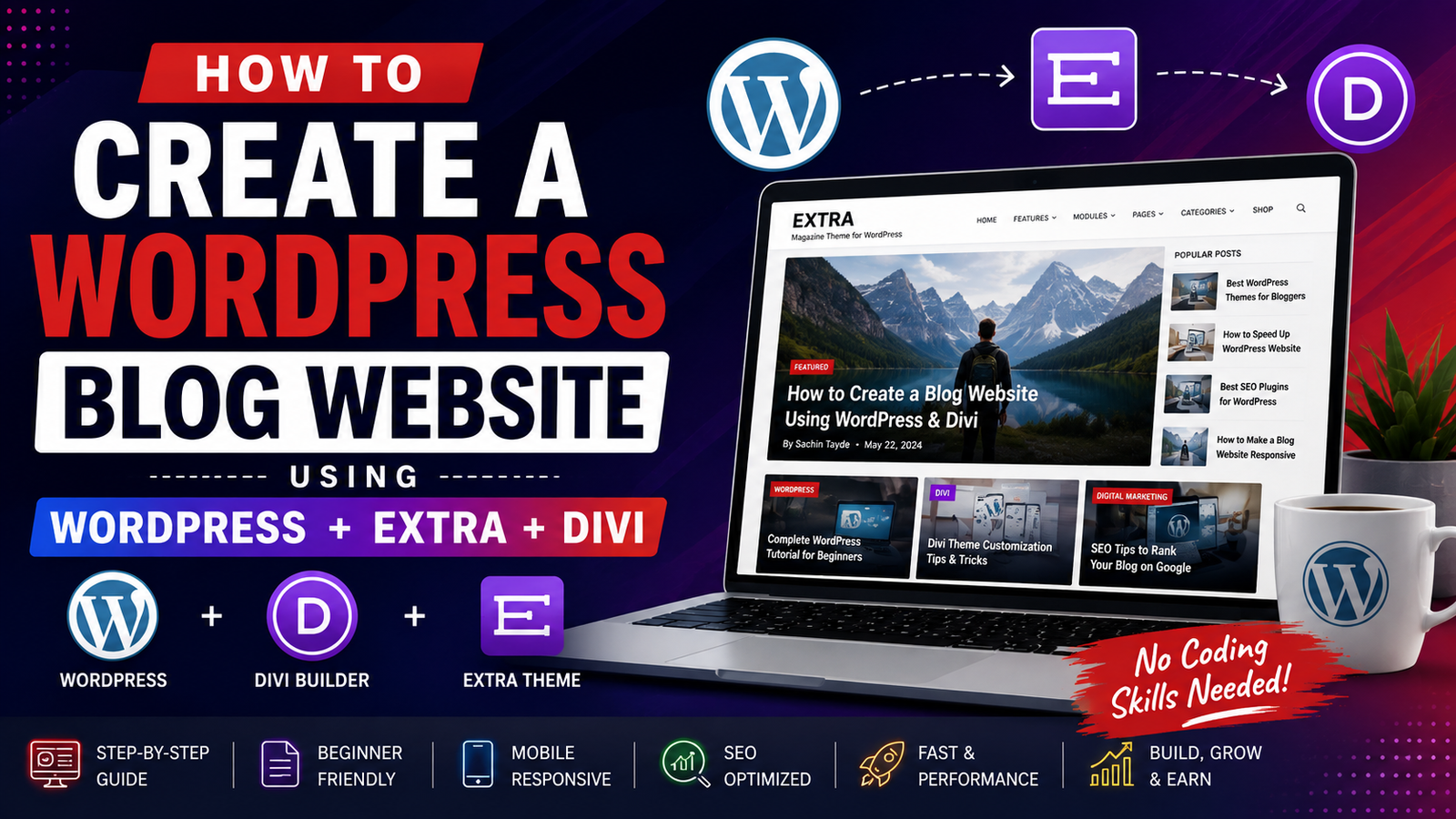
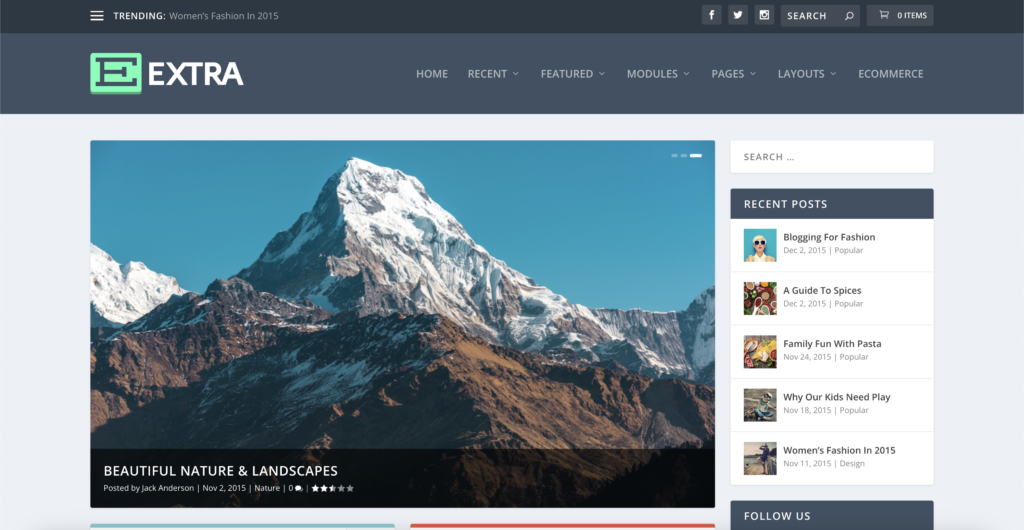
With WordPress and the Extra Magazine Theme by Elegant Themes, you can create a professional blog with categories, featured articles, post grids, sliders, sidebars, author information, and responsive layouts.
Extra is built on the Divi Builder, but unlike the standard Divi Theme, Extra is designed specifically around blogs and online publications. Its Category Builder allows you to visually create custom layouts for your homepage and individual category pages.
In this guide, I’ll show you how to create a WordPress blog website using WordPress and Extra, step by step.
You’ll learn how to:
- Choose domain and hosting
- Install WordPress
- Install Extra Theme
- Configure basic WordPress settings
- Create blog categories
- Create your first blog post
- Add featured images
- Create a professional blog homepage
- Use Extra’s Category Builder
- Create category-based blog layouts
- Add a sidebar
- Optimize your blog for SEO
- Make your blog mobile-friendly
- Improve website performance
- Add affiliate links
- Create a monetization strategy
Let’s get started.
Table of Contents
What Is a WordPress Blog Website?
A WordPress blog website is a website where you regularly publish articles, tutorials, guides, news, reviews, or other written content.
For example, you could create a blog about:
- WordPress
- Divi
- Digital Marketing
- SEO
- AI Tools
- Website Development
- Blogging
- Freelancing
- Online Business
WordPress manages your content, while your theme controls much of the visual appearance of the website.
In this tutorial, we’ll use Extra, a magazine-style WordPress theme from Elegant Themes.
Extra is built on the Divi Builder and includes specialized modules for displaying posts and creating magazine-style layouts.
Why Use WordPress and Extra for a Blog?
There are many WordPress themes available, so why use Extra?
Because Extra is designed specifically for content-heavy websites.
Elegant Themes describes Extra as a magazine-focused theme, with particular emphasis on post feeds and online publications.
Some useful features include:
- Custom category layouts
- Blog feeds
- Post grids
- Featured post sliders
- Post carousels
- Masonry layouts
- Tabbed posts
- Sidebars
- Mega menus
- Responsive layouts
- Divi Builder integration
Extra’s Category Builder allows you to create custom homepage and category layouts using post-focused modules.
This makes it especially useful if your goal is to build a serious blog rather than just a simple website with a few articles.
What You Need Before Creating Your Blog
Before you start, you’ll need:
1. Domain Name
Your domain is your website address.
For example: yourwebsite.com
Choose a domain that is:
- Easy to remember
- Easy to spell
- Related to your brand or topic
- Short if possible
2. Web Hosting
Hosting stores your WordPress website files and database on a server.
For a new blog, you can start with suitable WordPress hosting and upgrade as your traffic grows.
Look for:
- SSL
- WordPress support
- Backups
- Good server resources
- Caching
- CDN availability
- Easy WordPress installation
- Upgrade options
Recommended: Hostinger is one option you can consider for a new WordPress blog.
If you use an affiliate link, clearly disclose the relationship to your readers.
CTA:
3. WordPress
WordPress is the content management system (CMS) you’ll use to create and manage your blog.
A CMS allows you to publish and manage content without manually creating every page using code.
4. Extra Theme
You’ll also need the Extra Theme.
Extra is built on the Divi Builder and includes tools specifically designed for blog and magazine layouts.
Step-by-Step: How to Create a WordPress Blog Website
Step 1: Buy Your Domain and Hosting
Start by purchasing your domain and hosting.
After purchasing hosting, connect your domain to the hosting account if necessary.
Many modern hosting providers offer an automatic WordPress installation option.
What to check before buying:
- PHP version
- Storage
- Backups
- SSL
- Server resources
- CDN
- Renewal price
- Number of websites allowed
Don’t choose hosting only because it has the lowest introductory price.
Think about what your blog needs today and how it might grow in the future.
Step 2: Install WordPress
After logging into your hosting control panel, find the WordPress installation option.
Depending on your hosting provider, the process may look slightly different.
Generally:
Hosting Dashboard → Websites → Create Website → WordPress
Follow the installation instructions.
After installation, you’ll receive your WordPress login URL.
It normally looks similar to:
yourdomain.com/wp-admin
Log in to your WordPress Dashboard.
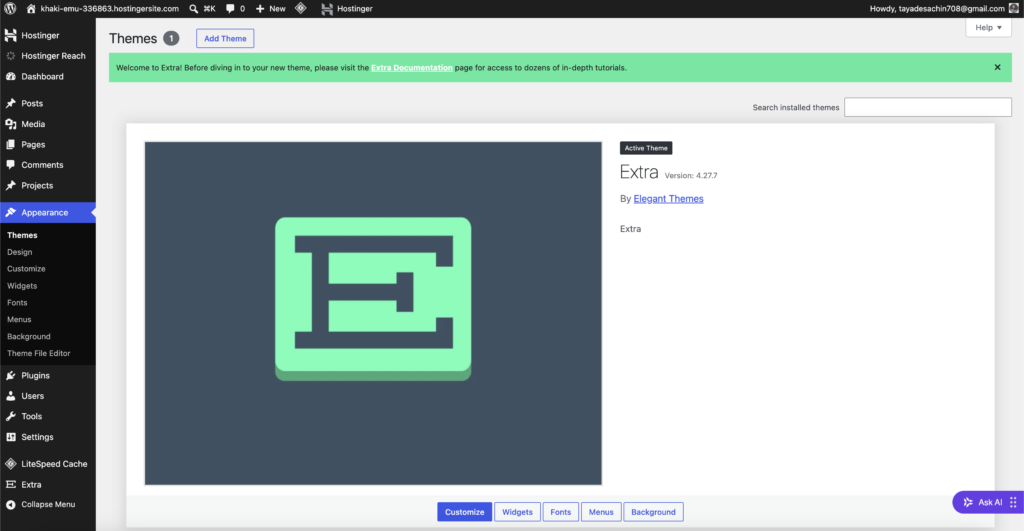
Step 3: Install the Extra Theme
After logging into WordPress:
Dashboard → Appearance → Themes → Add New → Upload Theme
Upload the Extra theme ZIP file and install it.
Then click:
Activate
Elegant Themes provides official documentation for installing Extra through the WordPress Dashboard.
[IMAGE SUGGESTION]
Step 4: Configure Extra Theme Settings
After activating Extra, go to:
Extra → Theme Options
Extra’s Theme Options allow you to configure important elements such as your logo, favicon, accent color, sidebar settings, navigation and post metadata.
Start by configuring:
Logo
Upload your website logo.
Favicon
Add a small icon that appears in browser tabs and bookmarks.
Global Accent Color
Choose your primary brand color.
For your personal website, you can maintain a consistent red, black and white brand style.
Navigation
Configure which pages and categories appear in your navigation.
Step 5: Configure Your Website Identity
Go to:
Settings → General
Configure:
- Site Title
- Tagline
- WordPress Address
- Site Address
- Administration Email
- Time Zone
Then go to:
Settings → Permalinks
For a blog, I recommend using a clean permalink structure such as:
/%postname%/
For example:
yourwebsite.com/how-to-create-wordpress-blog/
rather than a URL containing unnecessary numbers.
Step 6: Create Your Blog Categories
Categories are extremely important for a growing blog.
Go to:
Posts → Categories
Create categories based on your content strategy.
For your website, you could use:
WordPress
- WordPress Tutorials
- WordPress Plugins
- WordPress Themes
Divi
- Divi Tutorials
- Divi Tips
- Divi Resources
Digital Marketing
- SEO
- Social Media Marketing
- Lead Generation
AI
- AI Tools
- AI Marketing
- AI Website Tools
Blogging
- Blogging Tips
- Content Creation
- Monetization
WordPress uses categories to group related posts and help visitors navigate your content. Categories can also have parent/child relationships.
Important Tip
Don’t create 30 categories when you only have 10 articles.
Start with a small number of useful categories and expand when your content library grows.
Step 7: Create Your First Blog Post
Go to:
Posts → Add New Post
Add your:
- Blog title
- Content
- Images
- Categories
- Tags where useful
- Featured image
For example:
Title
How to Create a WordPress Website Using Divi
Category
WordPress Tutorials
Featured Image
Use a professional 1200 × 675 px featured image.
Step 8: Create an SEO-Friendly Blog Post
Don’t write an article simply to increase the number of posts on your website.
Each article should answer a specific search query.
Before writing, identify:
Primary Keyword
The main phrase you want the page to target.
Example:
WordPress blog website
Secondary Keywords
Related phrases such as:
- create WordPress blog
- WordPress blog tutorial
- how to start a WordPress blog
- WordPress blogging website
- create blog website without coding
- WordPress blog design
Use keywords naturally.
Don’t repeat the same keyword in every paragraph.
Step 9: Add a Featured Image
Every important blog post should have a professional featured image.
For example:
Blog Topic:
How to Create a Blog Website Using WordPress & Divi
Your featured image could show:
- WordPress logo
- Extra/Divi visual
- Laptop
- Blog website
- Website design interface
Recommended size
1200 × 675 px
SEO filename
create-wordpress-blog-website-divi.webp
Alt text
Create a WordPress blog website using Divi
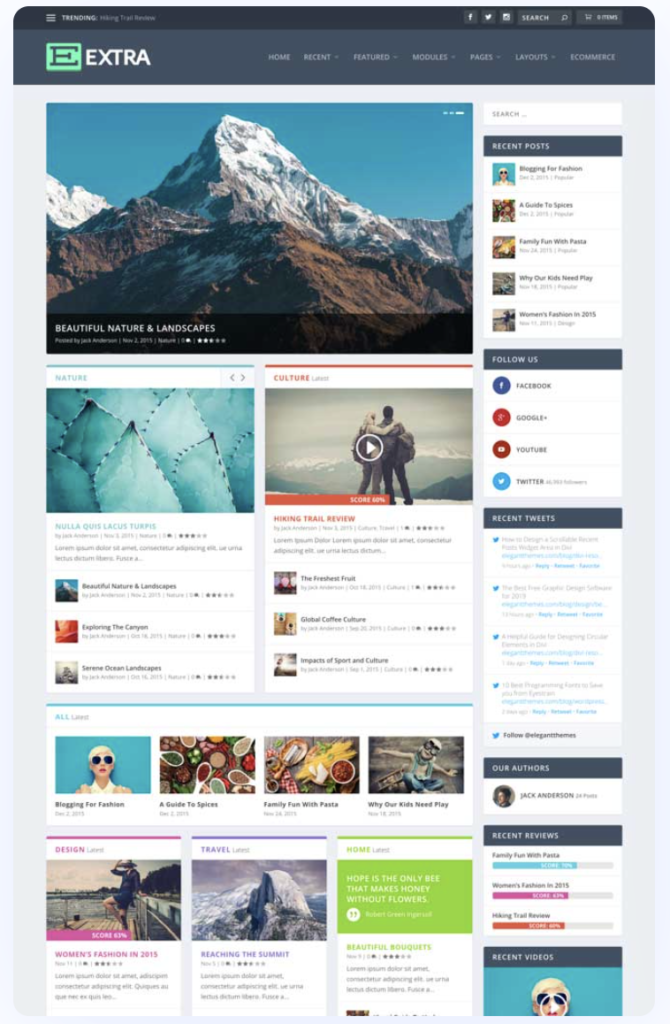
Step 10: Create Your Blog Homepage Using Extra
This is where Extra becomes especially useful.
Extra includes a Category Builder that allows you to create custom post-feed layouts for your homepage and category pages.
Go to:
Extra → Category Builder
Create a new layout.
You can then use Extra’s post-focused modules to create your homepage.
Step 11: Add a Featured Posts Section
Your homepage should immediately show your most important content.
Use the:
Featured Post Slider
This is useful for highlighting your best or most recent articles.
For example:
Featured Articles
- How to Create a WordPress Website
- Best Hosting for Divi Websites
- How to Install Divi Theme
- Best WordPress Plugins
Extra includes a Featured Post Slider specifically for highlighting articles with large imagery.
Step 12: Create a Blog Grid
After your featured section, create a grid showing your latest posts.
You can use Extra’s Posts Module to display posts from selected categories and control options such as featured images, author, categories, comments, ratings and dates.
Example:
Latest WordPress Tutorials
[Post 1] [Post 2] [Post 3]
Then:
Digital Marketing
[Post 1] [Post 2] [Post 3]
Then:
AI Tools
[Post 1] [Post 2] [Post 3]
This creates a professional magazine-style homepage.
Step 13: Create Category-Based Sections
One of Extra’s biggest advantages is the ability to create layouts for specific categories.
For example:
WordPress
Display:
- WordPress tutorials
- Plugins
- Themes
- Hosting
Divi
Display:
- Divi tutorials
- Divi tips
- Divi resources
Digital Marketing
Display:
- SEO
- Facebook Ads
- Google Ads
- Lead generation
Extra allows category layouts to be assigned based on the categories you select.
This is particularly useful when your blog has multiple content topics.
Step 14: Use the Masonry Blog Layout
If you publish many articles with strong featured images, consider using Extra’s Masonry Blog Feed.
A masonry layout displays posts in a visually dynamic grid.
Extra’s Standard Blog Feed supports both classic blog-style and masonry-style layouts.
Good for:
- Photography blogs
- Design blogs
- AI tools
- Tutorials
- Technology websites
- Magazine websites
Step 15: Add Tabbed Categories
If your blog has many categories, the Tabbed Posts Module can help organize content without making the page extremely long.
For example:
WordPress | Divi | SEO | Digital Marketing | AI
Visitors can select a category and see relevant posts.
Extra’s Tabbed Posts module is designed to display posts by category in tabs.
Step 16: Create Your Sidebar
A sidebar can contain useful information without distracting from your main article.
You could include:
About Me
Hi, I’m Sachin Tayde. I create WordPress websites and share practical tutorials about WordPress, Divi, digital marketing and online business.
Popular Posts
Show your most useful articles.
Categories
Display your main content categories.
Recommended Tools
You can include:
- Hostinger
- Divi
- Divi Plus
- WordPress plugins
- AI tools
Extra provides custom widgets designed for blogs and publications, including widgets for posts, advertisements and social feeds.
Step 17: Create an Author Section
An author section helps readers understand who created the content.
Example:
About Sachin Tayde
Sachin Tayde is a WordPress website developer and trainer focused on WordPress, Divi, website design, digital marketing and no-code website development.
He creates practical tutorials and resources to help beginners, freelancers and business owners build and grow their online presence.
Learn More About Me →
Avoid adding unsupported claims such as a specific number of students or clients unless you can verify them.
Step 18: Add Related Posts
At the end of every article, show related content.
For example, if the reader is reading:
How to Create a WordPress Blog Website
you could recommend:
- How to Create a WordPress Website Using Divi
- Best Hosting for Divi Websites
- How to Install Divi Theme
- Best WordPress Plugins for Beginners
- How to Make a WordPress Website Mobile Responsive
This helps visitors discover more of your content.
It also creates a strong internal linking structure.
Step 19: Optimize Your Blog for SEO
I recommend using Rank Math SEO or another established SEO plugin.
For every article, optimize:
SEO Title
Keep it clear and compelling.
Meta Description
Explain what the reader will learn.
URL
Keep it short.
Headings
Use:
H1 → H2 → H3
Images
Use descriptive filenames and useful alt text.
Internal Links
Link relevant articles together.
External Links
Reference authoritative sources where useful.
Don’t add links just to increase the number of links.
Step 20: Make Your WordPress Blog Mobile-Friendly
A large percentage of users will access your blog from smartphones.
Test your website on:
- Mobile
- Tablet
- Laptop
- Desktop
Check:
- Font size
- Line spacing
- Images
- Buttons
- Navigation
- Sidebar
- Blog cards
- Page loading
Extra’s post modules are designed to work across different screen sizes, but you should still manually test your actual website after designing it.
Step 21: Optimize Your Blog Speed
A beautiful website is not useful if it takes too long to load.
Optimize your images
Don’t upload a 5 MB image when a much smaller optimized image will work.
Use caching
Configure appropriate caching through your hosting or a suitable caching solution.
Limit unnecessary plugins
Install plugins because you need their functionality—not simply because they’re available.
Use a CDN when appropriate
A CDN can help deliver static website resources more efficiently.
Keep WordPress Updated
Regularly update:
- WordPress
- Extra
- Plugins
- PHP
Always maintain a backup before significant changes.
Step 22: Add Affiliate Links Naturally
Once you have useful content, your blog can become a source of affiliate revenue.
You could recommend:
Hosting
Hostinger
Explain why hosting is useful before placing your affiliate link.
Theme
Extra / Divi
Explain which type of website each product is suitable for.
Divi Tools
Divi Plus
Other Tools
- SEO tools
- AI tools
- Email marketing
- Analytics
- WordPress plugins
Don’t turn every paragraph into an affiliate promotion.
A good approach is:
Problem → Solution → Recommended Tool → Affiliate Link
For example:
If you’re creating a new WordPress blog, you’ll first need reliable hosting. I recommend choosing a plan with SSL, backups, sufficient storage and room to upgrade as your traffic grows.
👉 Get Recomhttps://www.hostinger.com/in?REFERRALCODE=SACHINDMmended Hosting →
Step 23: Create a Clear Blog Navigation
For your website, I recommend a menu such as:
Home | Tutorials | Free Resources | Recommended | Blog | About | Contact
Under Blog, you could have:
- WordPress
- Divi
- SEO
- Digital Marketing
- AI Tools
- Blogging
This makes your content easier to discover.
Step 24: Build a Content Strategy
Don’t publish random articles.
Create content clusters.
For example:
WordPress Cluster
Pillar Article:
How to Create a WordPress Website
Supporting articles:
- How to Install WordPress
- Best WordPress Hosting
- Best WordPress Plugins
- WordPress Security
- WordPress Speed Optimization
Divi Cluster
Pillar Article:
Complete Divi Beginner Guide
Supporting articles:
- How to Install Divi
- How to Create Divi Header
- How to Create Divi Footer
- Divi Responsive Design
- Divi Speed Optimization
Digital Marketing Cluster
- SEO
- Facebook Ads
- Google Ads
- Lead Generation
- Social Media Marketing
This gives you a much stronger long-term SEO strategy than publishing unrelated topics.
Best Practices for a WordPress Blog Website
1. Write for People First
Don’t write articles simply because a keyword has search volume.
Solve a real problem.
2. Use Simple Language
Your target audience includes beginners.
Instead of:
“Implement a sophisticated server-side caching architecture.”
Say:
“Use caching to help your website load frequently used content faster.”
3. Use Screenshots in Tutorials
When explaining WordPress or Extra, screenshots are extremely valuable.
For example:
Dashboard → Appearance → Themes → Extra
A screenshot can save your reader from confusion.
4. Use Consistent Featured Images
Create a consistent visual style across your blog.
For example:
WordPress = Red/Blue
Divi = Purple
Digital Marketing = Orange/Blue
AI = Dark/Purple
This makes your blog look more professional.
5. Keep Your Categories Organized
Don’t create a new category every time you publish a new topic.
Build a logical structure first.
Common Mistakes to Avoid
Mistake 1: Using Too Many Categories
If every article has a different category, your website becomes difficult to navigate.
Mistake 2: Writing Extremely Long Introductions
Readers want the answer quickly.
Get to the point.
Mistake 3: Keyword Stuffing
Don’t write:
WordPress blog website is the best WordPress blog website for creating a WordPress blog website…
It looks unnatural and provides no value.
Mistake 4: Ignoring Featured Images
A blog with random images looks less professional.
Create a consistent image style.
Mistake 5: Using Huge Images
Large images can hurt performance.
Compress and resize images before uploading them.
Mistake 6: Adding Too Many Plugins
Every plugin adds another component that you need to maintain.
Use only what you actually need.
Mistake 7: Ignoring Mobile Design
Always check the actual website on a smartphone.
Mistake 8: Making Every Article an Advertisement
Affiliate content should support your reader’s decision.
It shouldn’t dominate the article.
Pro Tips for Building a Successful WordPress Blog
Tip 1: Create Pillar Content
Create comprehensive guides around your main topics.
Tip 2: Link Your Articles Together
When you publish a new article, look at your older articles and find relevant internal linking opportunities.
Tip 3: Update Old Content
Don’t only publish new articles.
Review older articles and update:
- Screenshots
- Links
- Plugins
- WordPress instructions
- Statistics
- Product information
Tip 4: Build an Email List
Don’t depend entirely on Google or social media.
Offer a useful free resource and encourage readers to subscribe.
For example:
Free WordPress Beginner Checklist
Tip 5: Repurpose Every Blog Post
One blog post can become:
Blog → YouTube Video → Instagram Reel → Facebook Post → Pinterest Pin → LinkedIn Post
This is a powerful way to get more value from your content.
Recommended Tools for Your WordPress Blog
| Purpose | Tool |
|---|---|
| WordPress Hosting | Hostinger |
| WordPress Theme | Extra |
| Page Builder | Divi Builder |
| SEO | Rank Math |
| Analytics | Google Analytics |
| Search Data | Google Search Console |
| Images | Canva / AI image tools |
| Performance | PageSpeed Insights |
| Email Marketing | Your preferred email platform |
Always check current compatibility and pricing before installing or purchasing a tool.
Frequently Asked Questions
1. Can I create a WordPress blog without coding?
Yes. WordPress and Extra allow you to build and manage a blog without needing to write traditional HTML, CSS or PHP for every page.
Extra is built on the Divi Builder and provides visual tools for creating layouts.
2. Is Extra Theme good for blogging?
Yes. Extra is specifically designed for blogs, magazines and online publications. Its post-focused modules and Category Builder make it particularly suitable for content-heavy websites.
3. Is Extra the same as Divi Theme?
No.
Extra and Divi are separate themes from Elegant Themes, but Extra is built on the Divi Builder.
Divi is a multipurpose theme and website-building system, while Extra focuses more strongly on blogs and magazine-style websites.
4. Can I use Divi Builder with Extra?
Yes. Extra is built on the Divi Builder, and its Category Builder extends the visual building system with modules designed specifically for post feeds.
5. Can I monetize my WordPress blog?
Yes.
You can monetize through:
- Affiliate marketing
- Display advertising
- Digital products
- Online courses
- Services
- Sponsorships
- Lead generation
Choose monetization methods that fit your audience.
6. How many blog posts should I publish?
There is no magic number.
Focus on quality, search intent and consistency rather than publishing as many articles as possible.
7. Do I need SEO plugins for WordPress?
An SEO plugin can make common SEO settings easier to manage, but installing a plugin alone doesn’t make a website rank.
Your content quality, technical SEO, site structure, links and user experience all matter.
8. Can I use Extra for a business website?
Yes, although Extra is particularly well suited to blogs and content-heavy websites. If the primary purpose is a conventional business website rather than publishing content, you may also want to evaluate whether Divi or another theme better fits the project.
Conclusion
Creating a professional WordPress blog website doesn’t require advanced coding skills.
With WordPress, suitable hosting and Extra, you can build a blog that looks professional, organizes content effectively and gives you plenty of room to grow.
Extra is particularly useful for bloggers because it is built around content and includes tools such as the Category Builder, Blog Feed, Posts, Masonry, Featured Posts, Carousel and Tabbed Posts modules.
The most important thing, however, isn’t the theme.
It’s the content you publish and the value you provide to your readers.
Start with a clear niche, create useful articles, organize them into logical categories, optimize your website for search engines and mobile users, and build internal links between related articles.
Then gradually add monetization through affiliate recommendations, digital products, courses and services.
Ready to Start Your WordPress Blog?
Get your hosting → Install WordPress → Install Extra → Create your categories → Publish useful content → Grow your audience.
👉 Build Your WordPress Blog Today →

0 Comments